
You do not need to become a security professional. You need a home setup where the obvious disasters are harder to trigger: stolen email, reused passwords, fake urgent messages, lost photos, infected devices, weak router settings, and work-account mistakes.
Start with the checklist below. It is ordered by damage, not by technical glamour. If you only have one evening, protect your main email, money accounts, password manager, updates, and one real backup.
The Home Cybersecurity Checklist
Do these in order. Each row includes the quick check, because “turn it on” is not useful unless you can tell it stayed on.
If this feels like a lot, pick one account tonight: your primary email. Give it a unique password, turn on MFA or a passkey, check recovery options, and save backup codes. That single account protects many others.
What To Do First This Week
Day 1: Secure Your Main Email
Your main inbox is the account criminals want most. It receives password reset links, bank alerts, shipping notices, tax documents, photos, and family messages. Change it to a unique password stored in a password manager, then enable MFA or a passkey.
Check recovery options while you are there. Remove old phone numbers and email addresses you no longer control. Add a current recovery method, then print or securely store recovery codes offline.
Before you leave the settings page, check two more things:
- forwarding and filters: remove anything that silently sends mail to an address you do not control;
- signed-in devices and sessions: sign out of old phones, browsers, or locations you do not recognize.
Day 2: Protect Money And Device Accounts
Next, secure banking, payment apps, Apple ID, Google Account, Microsoft account, mobile carrier account, and your password manager. These accounts control money, devices, cloud backups, app stores, and password resets.
For banking and payment apps, use the strongest MFA the service allows. App prompts, authenticator apps, passkeys, and hardware security keys are generally stronger than SMS codes. SMS and email codes are still better than password-only login, but they are weaker because messages and phone numbers can be redirected or tricked out of you.
The quick check is simple: open each account’s security page and look for sign-in method, two-step verification, passkeys/security keys, trusted devices, and recovery options. If you see an old device, old phone number, or old recovery email, remove or replace it while you still control the account.
Day 3: Update Everything
Turn on automatic updates for:
- Windows, macOS, iOS, iPadOS, Android, and ChromeOS;
- Chrome, Edge, Firefox, Safari, and other browsers;
- password managers, banking apps, messaging apps, and cloud storage apps;
- router or mesh firmware.
CISA’s consumer guidance puts strong passwords, MFA, updates, and phishing resistance at the center of basic home security. It is not glamorous, but it is where normal households get the biggest risk reduction.
How to check quickly:
- Windows: Settings -> Windows Update -> check that updates are current and pause is not enabled.
- macOS: System Settings -> General -> Software Update.
- iPhone/iPad: Settings -> General -> Software Update and Automatic Updates.
- Android: Settings -> Security & privacy or System -> System update, depending on the phone.
- Browsers: open the browser menu -> Help/About; most browsers update from that screen.
- Router/mesh: open the router app or admin page and look for firmware/software update status.
Day 4: Make A Backup You Can Restore
Back up family photos, important documents, tax files, school files, and anything you would be upset to lose. Then restore one file on purpose. A backup you have never restored is a hope, not a plan.
For the restore test, pick a harmless file, restore it to a temporary folder, open it, and confirm it is readable. Do not wait for a laptop failure to learn that the backup account was full, paused, or pointed at the wrong folder.
Day 5: Fix The Router
Log in to the router or mesh app. Change the router admin password if it is still default or shared with the Wi-Fi password. Use WPA3 Personal if all devices support it, or WPA2 Personal/AES if they do not. Create a guest network for visitors and smart-home devices if your router supports it.
If you do not know where the router admin page is, check the sticker or the ISP/router app first. On Windows, ipconfig shows the Default Gateway; on macOS, Wi-Fi details show the router address. Do not post router serial numbers, MAC addresses, or full public IP details in public forums.
For deeper Wi-Fi troubleshooting, router placement, mesh, extenders, and powerline decisions, use our home Wi-Fi fix guide.
Lock Down Your Root Accounts
Root accounts are the accounts that can unlock other parts of your life. Treat them as a short protected list, not as ordinary logins.
Use a unique password, MFA or a passkey, and current recovery options. Check forwarding rules, connected apps, and logged-in devices. A hidden forwarding rule can let someone keep reading your mail after you change the password.
Apple, Google, And Microsoft
These accounts often control phones, laptops, cloud photos, app purchases, device location, browser sync, and saved passwords or passkeys. Turn on the strongest sign-in option the platform offers and review trusted devices.
If you use a Windows PC, updates and firmware trust also matter. Our Windows Secure Boot certificate guide covers a specific maintenance check for Windows devices.
Banking, Payment, And Mobile Carrier
Use unique passwords and MFA. Also secure your mobile carrier login, because a phone-number takeover can affect SMS codes and bank alerts. Set account PINs or extra verification if your carrier supports them.
Password Manager
Your password manager deserves special care. Use a long master password you do not reuse anywhere. Turn on MFA if supported. Save emergency or recovery instructions in a place your household can access if something happens to you, but do not leave the master password in a notes app or shared chat.
Password Manager, MFA, Passkeys, And Recovery Codes
A password manager is not about convenience first. It is about unique passwords. If one shop, forum, school portal, or old account leaks your password, criminals should not be able to try that same password on your email, bank, and cloud accounts.
Use the manager to generate long, random passwords. Do not memorize them. Memorize only the password manager’s master password and protect that account carefully.
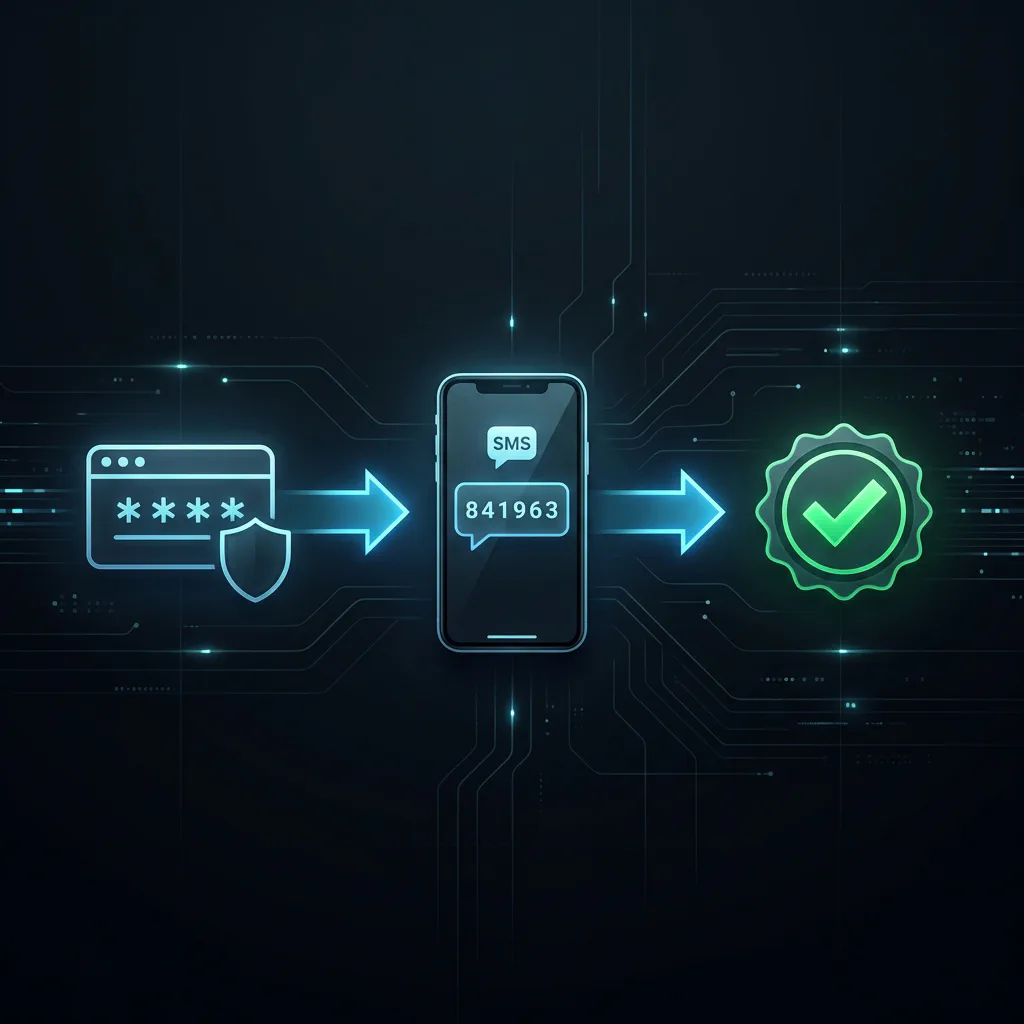
MFA adds a second check after the password. Use passkeys or hardware security keys where available, and app-based codes when passkeys are not offered.
MFA adds a second step after the password. Common options, from weaker to stronger, are:
| Sign-in method | Use it? | Plain-English caveat |
|---|---|---|
| Password only | Avoid when possible | One stolen password is enough. |
| SMS or email code | Better than nothing | Can be phished, intercepted, or affected by account takeover. |
| Authenticator app | Good baseline | Stronger than SMS, but still typeable into a fake page. |
| Passkey or hardware security key | Strongest for normal users | Built to resist phishing because it checks the real site. |
NIST’s digital identity guidance emphasizes stronger authentication and careful recovery design, while the FIDO Alliance explains passkeys as a phishing-resistant replacement for passwords on supported services. The practical rule is simple: use passkeys where they are available, use authenticator apps where they are not, and use SMS/email codes rather than leaving an account password-only.
Recovery codes are boring until they save you. When an account offers backup codes, save them offline: printed, in a safe, or in another secure place that is not only inside the account you are trying to recover.
Updates: Phones, Computers, Apps, Browsers, And Router Firmware
Most home users do not need to study every vulnerability. You need automatic updates and a restart habit.
Turn on automatic updates for operating systems and browsers. Restart devices when updates ask for it. Update apps from official app stores or the developer’s own site. Remove apps you no longer use, especially old browser extensions and utilities that still have account access.
For routers and mesh systems, open the router app or admin page and look for firmware updates. If your ISP manages the gateway, check whether updates are automatic. If an old router no longer receives updates, replacement may be a security decision, not just a speed upgrade.
Backups For Photos, Documents, And Password Exports
For a normal household, the backup plan can be simple:
- one working copy on your phone, laptop, or desktop;
- one automatic cloud backup for photos and documents;
- one separate copy on an external drive or another cloud account;
- one small restore test every few months.
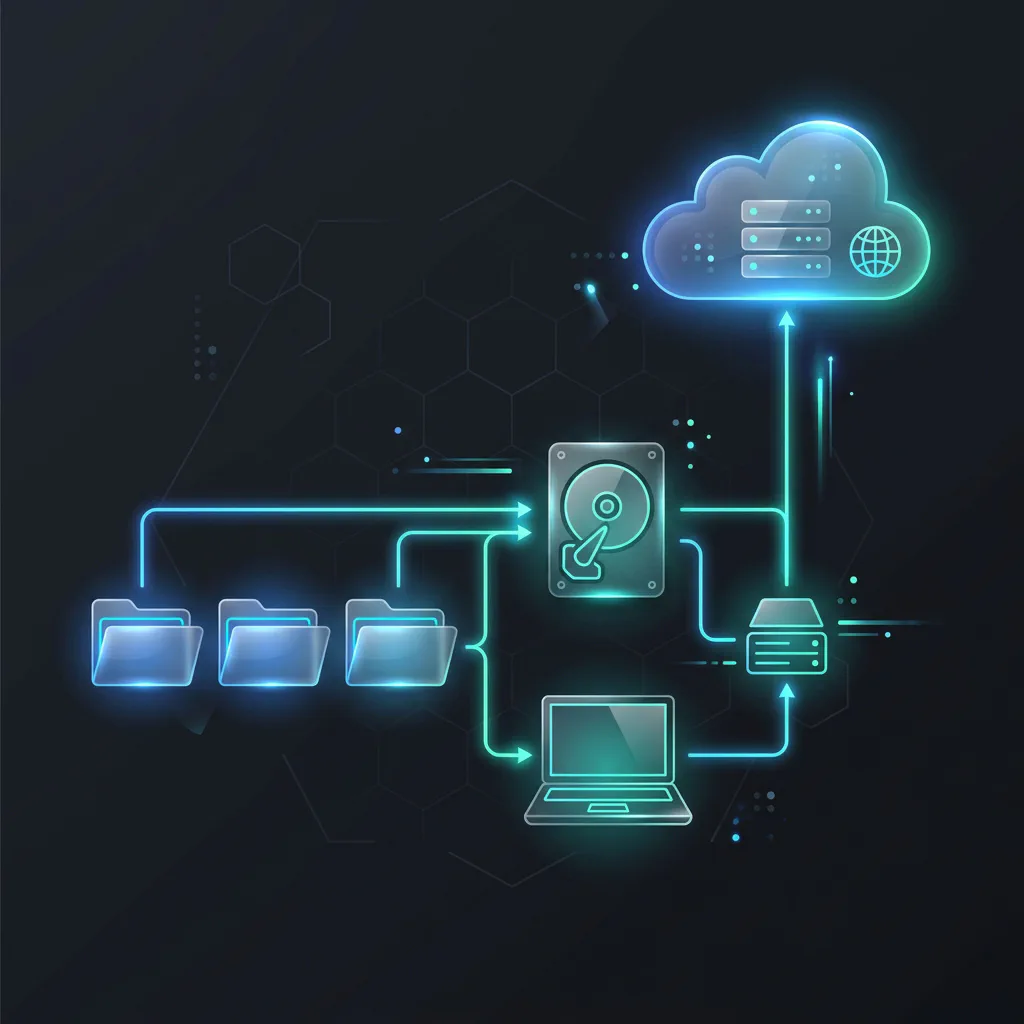
A home backup plan does not need to be fancy: keep more than one copy, separate at least one copy, and test that you can restore a real file.
This is the home-user version of the 3-2-1 idea: keep multiple copies, avoid keeping every copy in the same place, and make sure at least one backup is not always exposed to the same mistake or malware event.
Back up:
- family photos and videos;
- tax, identity, school, legal, and medical documents;
- password manager emergency kit or export, if your manager supports a secure export workflow;
- two-factor recovery codes;
- BitLocker or device recovery keys where relevant.
Be careful with password-vault exports. They can be plain files. If you export one, encrypt it, store it offline or in a secure location, and delete temporary copies from downloads, desktop, and cloud sync folders when finished.
Home Wi-Fi And Router Basics
Your router has two different passwords:
- the Wi-Fi password, which lets devices join the network;
- the router admin password, which lets someone change settings.
They should not be the same. If the admin password is still the default, change it. The FTC’s home Wi-Fi guidance also recommends changing default router credentials, using encryption, keeping router software updated, and limiting risky access.
Use WPA3 Personal if your router and devices support it. WPA2 Personal/AES is still a reasonable fallback for older devices. Avoid WEP and old TKIP settings.
Create a guest network for visitors and smart-home devices if your router supports isolation. Smart TVs, cameras, speakers, plugs, and appliances often do not need to see laptops with tax files or work documents.
Review these settings:
- remote management: turn it off unless you knowingly need it;
- WPS: turn it off if you do not use it;
- UPnP: leave it off when possible, or enable it only when you understand why an app or console needs it;
- firmware updates: enable automatic updates if available;
- unknown devices: remove or investigate devices you do not recognize.
Do not hide the Wi-Fi name as your main security move. A strong Wi-Fi password, modern encryption, updated firmware, and a separate guest network matter more.
Family, Shared Devices, And Older Relatives
Household security is mostly about clear rules before a stressful message arrives.
Set these rules with children, teens, partners, and older relatives:
- nobody shares one-time codes, passwords, recovery codes, or remote-access sessions because a caller sounds urgent;
- money requests get verified through a known channel, not the number or link in the message;
- surprise attachments, QR codes, and login links are paused until checked;
- shared tablets and family computers use separate profiles when possible;
- kids do not install browser extensions, game mods, APK files, or “free” tools without asking;
- older relatives can call a trusted family member before responding to bank, tax, delivery, or tech-support messages.
Create a family verification phrase for urgent calls about money, travel, bail, medical help, or “I lost my phone.” It should be easy for family to remember and hard for a stranger to guess. The point is not spy drama. It is a pause button when fear is doing the driving.
Remote Work Boundary
Work devices and work accounts belong inside employer policy. If your employer provides a laptop, VPN, password manager, endpoint security, or login rules, use those. Do not move files to personal cloud storage, install unapproved remote-access tools, or route company traffic through a personal VPN unless your company allows it.
A personal VPN can be useful on hotel or cafe Wi-Fi for personal browsing, but it is not automatically the right tool for work. Corporate VPNs, device management, and identity policies exist so the employer can control access and logging. If you are unsure, ask IT before improvising.
For VPN basics, read what a VPN does and does not do. If you are comparing personal VPNs for travel or privacy, our VPN comparison guide and privacy and remote-work VPN guide explain the tradeoffs.
Phishing, Scams, And AI Impersonation Checks
The safest scam rule is: stop using the message as the source of truth.
If a message says your bank, delivery, tax account, school portal, employer, crypto wallet, or family member needs urgent action:
- Do not click the link in the message.
- Open the official app or type the known website yourself.
- Call back using a saved contact or a number from the official site.
- Ask another family member before sending money or codes.
- Report the message as phishing or spam when the service supports it.
The FTC’s phishing guidance is still the right household baseline: look for unexpected requests, urgency, payment pressure, suspicious links, and attempts to collect login details or verification codes. Poor grammar is no longer a reliable warning sign. A fake message can be polished, personal, and timed well.
Treat voice and video the same way. If someone sounds like a family member but asks for urgent money, secrecy, gift cards, crypto, wire transfer, or account codes, verify through a known channel and use the family phrase.
If You Ask For Help, Send This Safely
Good support starts with useful details, not private secrets. If you ask Price2Click, a forum, your ISP, bank, school, or workplace for help, send enough context to diagnose the problem while hiding sensitive information.
Useful details:
- what happened, in one sentence: “I entered my Google password on a fake delivery page” is better than “I got hacked”;
- when it happened and what device you used;
- which account type is involved: email, bank, Apple, Google, Microsoft, router, phone, work account, game account;
- what you already changed: password, MFA, signed-out sessions, recovery email, router password, backup restore test;
- exact error messages, copied as text when possible;
- screenshots with names, email addresses, phone numbers, order numbers, QR codes, serial numbers, full IP addresses, and recovery codes hidden.
For screenshots, crop tightly around the setting or warning. A safe screenshot might show MFA is on, backup completed, router encryption: WPA2/WPA3, or Windows Update is current. It should not show recovery codes, account tokens, bank balances, invoices, or your full home network device list.
Mini Incident Playbook
When something goes wrong, do not spend the first hour arguing with yourself about whether it “counts.” Act small and fast.
| What happened | Do first | Then |
|---|---|---|
| Clicked a suspicious link | Close the page. Do not enter anything else. | Run updates, scan if available, and watch for account alerts. |
| Entered a password on a fake page | Change that password from the real site on a clean device. | Revoke sessions, turn on MFA, and change reused passwords elsewhere. |
| Got an unknown login alert | Do not approve it. | Change the password, remove unknown devices, and save new recovery codes. |
| Lost a phone or laptop | Use Find My Device, Find My, iCloud, or Google tools to lock it. | Change key account passwords if the device was unlocked or unprotected. |
| Ransomware warning or files renamed | Disconnect from Wi-Fi or unplug Ethernet. | Do not pay from panic; preserve evidence, get clean-device help, and restore from backups. |
| Bank or card fraud | Call the bank using the number on the card or official app. | Freeze or replace cards, dispute charges, and use IdentityTheft.gov if identity data is involved. |
For identity theft and data-breach recovery, the FTC’s IdentityTheft.gov gives step-by-step recovery plans. For ransomware, CISA’s StopRansomware resources are a better starting point than random forum advice.
What Not To Overbuy
Security products can help, but they do not replace the basics.
A VPN does not fix reused passwords, fake login pages, unpatched devices, weak router settings, missing backups, or family money scams. It mainly changes who can see some of your network traffic and can help on untrusted Wi-Fi. That is useful, but it is not household armor.
Antivirus suites can add scanning, browser warnings, parental controls, and identity-monitoring features. They still cannot rescue a reused password, a shared one-time code, or a missing backup. Keep built-in protection enabled at minimum, update it, and be cautious before paying for a bundle because an ad made the internet sound impossible to survive.
Mesh routers can improve coverage, but they are not a security plan by themselves. A new mesh kit still needs a strong admin password, WPA3 or WPA2, firmware updates, guest/IoT separation, and sane remote-management settings.
Spend effort before money in this order: root accounts, MFA/passkeys, updates, backups, router basics, family verification rules. After that, paid tools are easier to judge because you know what job they are supposed to do.
The Bottom Line
You are not trying to beat every possible attacker. You are trying to make the easy attacks fail before they reach the parts of life that would actually hurt.
Start where the damage would be worst: email, money, cloud photos, device accounts, password manager, and work access. Give those accounts unique passwords and MFA or passkeys. Keep updates automatic. Make one backup you have actually restored. Put guests and smart devices on their own Wi-Fi lane when you can. Agree on a family verification phrase before the scary call or message arrives.
That is real home security: a handful of quiet routines that protect the things people miss most when something goes wrong, without turning daily life into a security job.