
Bad Wi-Fi rarely arrives as one clean problem. One evening it is a video call freezing. The next day a laptop says “connected, no internet.” A console shows strict NAT. A smart plug refuses to join. A phone works in the kitchen but not in the bedroom. Those are not all the same failure, even though everyone in the house calls them “the Wi-Fi.”
The useful move is to stop treating Wi-Fi as one black box. Your connection has layers: the device, the wireless link, the router, the internet line, DNS, and the outside service. A mesh kit can fix one layer. It will not fix bad DNS, a double-NAT port-forwarding mess, a failing modem cable, a blocked device rule, or an ISP outage.
This guide is built around diagnosis first. Do the quick checks, identify the failure pattern, then decide whether the fix is a setting, a placement change, an ISP call, or new hardware.
If you are in a hurry, do not start by buying a mesh kit. First prove which layer is failing: test near the router, test the problem room, check whether wired devices fail too, and run one gateway/DNS check on a laptop if you can.
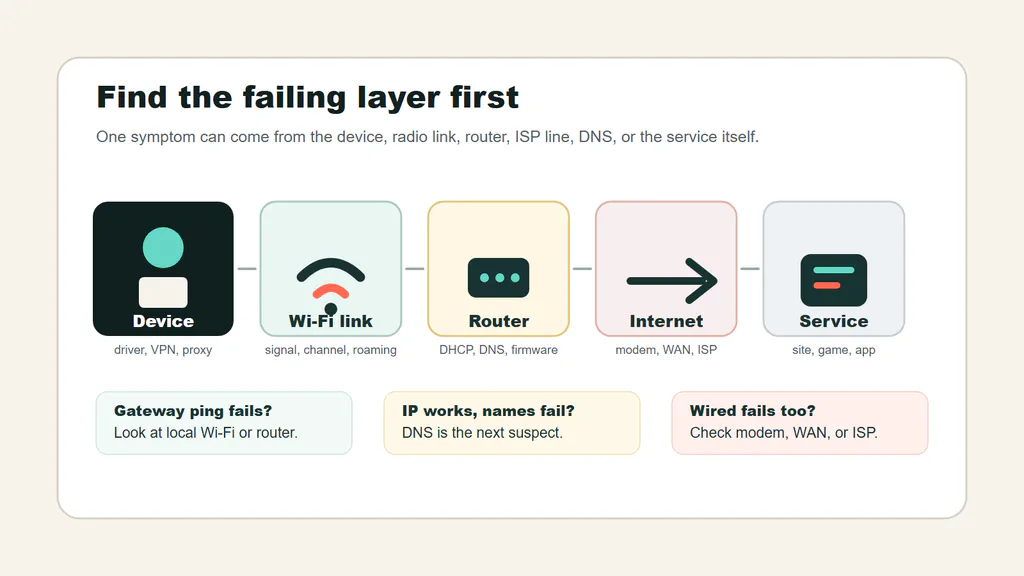
Treat home Wi-Fi as a path. If you know which part of the path is failing, the fix gets much less random.
Start With The Failure Pattern
Before changing settings, write down three things: which device fails, where it fails, and whether other devices fail at the same time. That small note saves a lot of blind clicking.
| Symptom | First check | What it usually means | Do not buy hardware until |
|---|---|---|---|
| Connected, but no internet | Check IP address, gateway, DNS, and router WAN status | The device joined Wi-Fi, but the route out is broken | DHCP, DNS, modem/router restart, and ISP status are checked |
| Drops every few minutes | Compare one room vs near-router and check router uptime/logs | Weak signal, interference, DFS/channel switch, overheating, firmware, or line drop | You know whether Wi-Fi drops or the whole internet line drops |
| One room is slow or dead | Test the same phone near router, hallway, and problem room | Coverage, walls, placement, or bad mesh node position | Router and node placement have been tested in better spots |
| One device fails | Compare another device in the same spot | Adapter, driver, saved network, VPN/proxy, power saving, or device band support | A second device shows the same problem in the same place |
| Certain sites or apps do not load | Try another browser/app, turn VPN off, check DNS/filtering/parental controls | DNS, firewall, ad-blocking DNS, router security rule, VPN route, or service outage | The block happens across devices and networks are ruled out |
| Strict NAT or ports will not open | Check for double NAT, CGNAT, DHCP reservation, and the target device IP | Router/firewall path issue, not Wi-Fi coverage | You know whether you have a public WAN IP and one router doing NAT |
| Slow only when everyone is home | Watch uploads, cameras, cloud sync, consoles, and channel congestion | Load, bufferbloat, or crowded airtime | A quiet-house test and a busy-house test show the gap |
The 15-Minute Home Test
Do this once before you buy anything. It turns a vague complaint into evidence.
- Restart in the right order. Turn off modem/gateway and router. Bring the modem/gateway online first, wait until it is stable, then start the router or mesh system.
- Test three locations with the same device: beside the router, halfway to the problem room, and in the problem room. If the first spot is good and the last spot is bad, you have a Wi-Fi coverage or interference problem.
- If possible, test one wired device. If wired is bad too, do not start with mesh. Check modem, ISP line, router WAN status, or the plan itself.
- Test when the house is quiet and again when the problem usually happens. Cloud backups, security cameras, consoles, uploads, and video calls can make a network feel broken even when signal is fine.
- Check whether one device is the outlier. If only one Windows laptop is slow, confirm the adapter, driver, Windows version, and hardware with our Windows PC specs guide. If the problem appears only with a VPN on, test once with the VPN off before blaming Wi-Fi.
For a Windows laptop, these three commands are enough to separate several common failures:
ipconfig
ping 192.168.1.1
ping 1.1.1.1
ping example.com
Use your real gateway IP from ipconfig; many homes use 192.168.1.1, but not all. If the gateway ping fails, your device is not reliably reaching the router. If the gateway works but 1.1.1.1 fails, the router or ISP path is the suspect. If 1.1.1.1 works but example.com fails, look at DNS. Microsoft’s Windows Wi-Fi guidance also calls out DHCP, DNS, proxy settings, and the classic 169.254.x.x address as clues when a device is connected locally but has no internet.
Read the result like this:
| Result | What it tells you | Next move |
|---|---|---|
| No normal IPv4 address, or `169.254.x.x` | The device did not get a usable address from the router | Forget/rejoin Wi-Fi, renew DHCP, check router DHCP, then reboot router if several devices are affected |
| Gateway ping fails | The device is not reliably reaching the router | Move closer, test another device in the same spot, check adapter/driver, band, signal, and router placement |
| Gateway works, `1.1.1.1` fails | Wi-Fi is up, but the router or ISP path is broken | Check router WAN status, modem lights, ISP outage, cable between modem and router, and account/provisioning status |
| `1.1.1.1` works, domain ping fails | The internet path works, but name lookup is failing | Check DNS, VPN, proxy, filtering DNS, parental controls, and router security features |
| Commands look fine but apps still fail | The issue may be app-specific, blocked, overloaded, or outside your network | Try another device, browser, mobile hotspot, VPN off/on test, and check whether the service is down |
If It Says Connected But No Internet
This is one of the most misunderstood Wi-Fi problems. The wireless link may be fine. The device can join the router, but the router is not giving it a usable path to the internet.
Check it in this order:
- Open the router app or admin page and check WAN/internet status. If the router itself says offline, your phone is not the problem.
- In
ipconfig, look for an IPv4 address, default gateway, and DNS servers. If the address starts with169.254, the device did not get a normal DHCP lease from the router. - Renew the address on Windows with
ipconfig /releaseandipconfig /renew, then flush stale DNS withipconfig /flushdns. - Turn off manual proxy settings unless you intentionally use one.
- Try a different DNS server only after you confirm the router and ISP link are up. DNS changes are useful when names fail, not when the router has no internet.
On phones and tablets, the same idea applies without commands: forget the network, rejoin it, check whether other devices have internet, and then check the router’s WAN status. If every device joins Wi-Fi but nothing reaches the internet, you are probably looking at the modem, router WAN, ISP, DNS, or account/provisioning side.
If Wi-Fi Drops Or Reconnects
Dropouts are different from slow speed. A slow network stays connected. A dropout breaks the session: calls freeze, games disconnect, smart TVs stop streaming, or the Wi-Fi icon disappears and comes back.
Start by deciding whether only Wi-Fi drops or the whole internet drops. If the router uptime resets, modem lights cycle, or wired devices fail at the same moment, the problem may be power, modem signal, ISP line, overheating, bad cable, or router firmware. If wired stays stable but wireless clients drop, focus on signal, channels, roaming, device drivers, and band choice.
Common fixes:
- update router firmware or confirm ISP-managed firmware is current;
- move the router out of cabinets, off the floor, and away from heat;
- replace a damaged Ethernet cable between modem and router;
- on Windows laptops, check adapter power saving if drops happen on battery;
- if the router is using DFS 5 GHz channels and clients disappear during channel moves, test a non-DFS 5 GHz channel;
- if a mesh client drops while walking around, check whether nodes are too far apart or competing with each other.
Do not factory-reset the router as the first move. Save or screenshot important settings first, especially ISP login details, static DHCP reservations, port forwards, custom DNS, and Wi-Fi names.
If One Room Is Weak
Weak coverage is still common, but it should not swallow the whole article. It is only one branch of Wi-Fi repair.
Wi-Fi weakens through distance, floors, dense walls, metal, appliances, aquariums, mirrors, cabinets, and furniture. A router hidden in a media cabinet is starting the race with one shoe tied. Google’s Nest placement guidance says the same basic thing in vendor language: keep router and points in the open, off the ground, and reasonably central to the areas that need coverage.
A better test is more useful than another speed-test screenshot:
- Stand beside the router and run the same real task that fails, such as a video call test or file download.
- Move halfway toward the problem room and repeat.
- Test inside the problem room.
- If the middle spot is good but the room is bad, place a mesh node or extender near the middle, not inside the dead zone.
- If the router is trapped beside the modem in a bad corner, use a longer Ethernet cable between modem and router if your setup allows it.
If The Air Is Crowded
In apartments and dense neighborhoods, signal bars can lie. Your device may show strong signal while competing with many nearby networks on the same band.
Most homes use 2.4 GHz and 5 GHz, and newer gear may also use 6 GHz. The simple version:
- 2.4 GHz reaches farther but is crowded and has fewer clean lanes.
- 5 GHz is usually faster nearby and has more room, but it does not travel through walls as well.
- 6 GHz can be cleaner for compatible Wi-Fi 6E and Wi-Fi 7 devices, but both router and client must support it.
Microsoft’s home-layout guidance and Intel’s band explainer both make the same practical point: congestion, band, channel width, and distance all matter. The trick is not to chase the biggest speed-test number beside the router; it is to make the rooms you actually use stable.
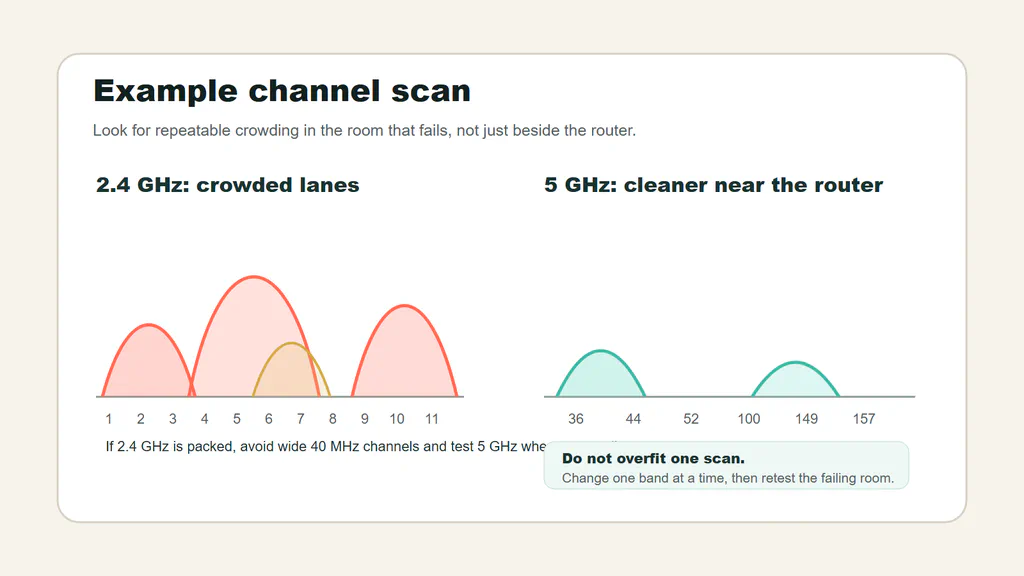
A channel scan is not a magic answer, but it shows whether your router is fighting a crowded lane. In this example, 2.4 GHz is packed while 5 GHz has cleaner space.
How to read a basic scan:
- Look at the band first. If 2.4 GHz is packed and your device supports 5 GHz, test 5 GHz near the same spot.
- On 2.4 GHz, prefer 20 MHz channel width. Wider 40 MHz settings often create more overlap in crowded areas.
- If you manually choose a 2.4 GHz channel, start with 1, 6, or 11 in countries that use the common US-style channel plan. Other regions vary, and some routers handle this automatically.
- On 5 GHz and 6 GHz, automatic channel selection is usually a good starting point. Manual changes make sense only if you have a repeatable problem and a scan that explains it.
- Retest in the failing room. A clean channel beside the router does not prove the bedroom is fixed.
Router apps, macOS Wireless Diagnostics, Android Wi-Fi analyzer apps, and some ISP apps can show nearby networks or channel use. iPhone and iPad are more limited, but router apps often show each client’s band, signal quality, and connected node.
If Sites, Apps, Or Devices Are Blocked
Sometimes the Wi-Fi is fine and the policy layer is the problem. A site may fail because a DNS filter blocks it. A game may fail because a firewall rule or NAT type blocks incoming traffic. A work app may fail only on VPN. A child profile, schedule, guest network, or IoT isolation setting may keep devices from seeing each other.
Check these before replacing hardware:
- router parental controls, security filters, ad-blocking DNS, and scheduled pause rules;
- whether the device is on a guest or IoT network that cannot see local printers, NAS, TVs, or speakers;
- VPN split tunneling and kill-switch settings;
- custom DNS on the router or device;
- firewall rules on the computer itself;
- router block lists or unknown-device protection;
- whether only one website/app is down for everyone, which can be an outside service problem.
The clean isolation test is simple: try the same site or app on the same device with VPN off, then on another device on the same Wi-Fi, then on mobile data or a phone hotspot. If it fails only on your home Wi-Fi, look at DNS, router filtering, firewall, guest/IoT isolation, or NAT. If it fails everywhere, the service, account, app, or device is more likely than the router.
Apple’s router-settings guidance is a useful baseline here because it covers the boring settings that cause real pain: security mode, network name, hidden networks, MAC filtering, DHCP, NAT, DNS, and WMM. The important lesson is consistency. A home with one router, one extender, and one old access point using different security and DHCP behavior can create problems that look random.
If Port Forwarding Or NAT Type Fails
Port forwarding is not a Wi-Fi coverage fix. It is a routing and firewall fix. If a game says strict NAT, a camera cannot be reached remotely, or a self-hosted service is unreachable, adding mesh nodes will not help.
Use this map before opening ports:
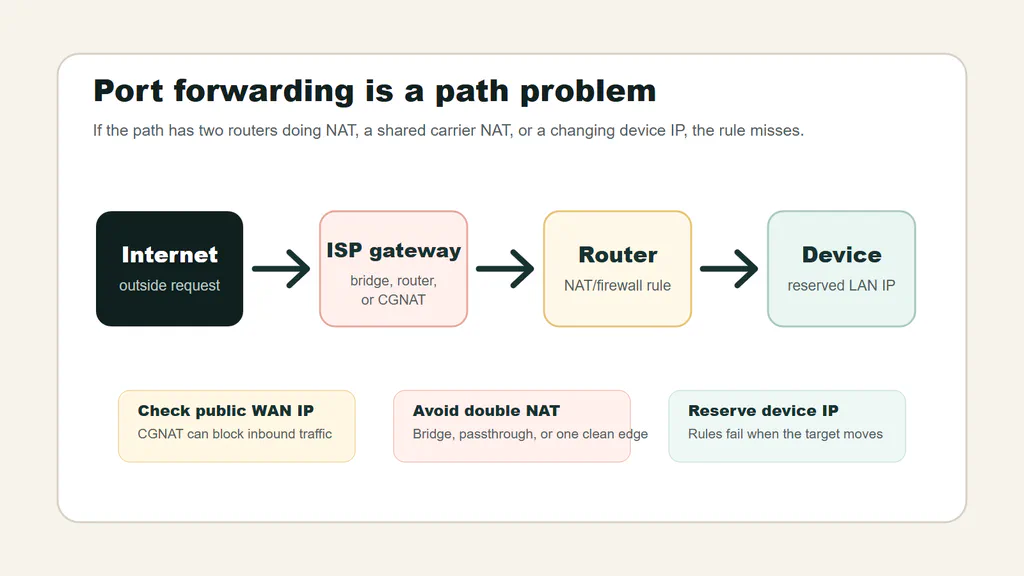
Port forwarding only works cleanly when traffic has a clear path to the right device. Double NAT, CGNAT, and changing device IPs are the usual traps.
Work through the path:
- Check whether your router WAN address is public. If the router WAN IP is private, shared, or different from what public-IP websites show, you may be behind CGNAT or another upstream router.
- Look for double NAT. If both the ISP gateway and your own router are doing NAT, port forwarding may need bridge mode, passthrough, DMZ-to-router, or a forward on both devices. Google’s double NAT guidance calls this out for gaming, UPnP, and port-forwarding users.
- Reserve the target device IP in DHCP before forwarding. A port rule aimed at yesterday’s IP is a dead rule.
- Forward only the needed ports to one internal device. Do not open broad ranges because a forum said so.
- Use UPnP only if you trust the devices and games that need it. For manual rules, turn off duplicate or conflicting rules.
- Test from outside your home network. Testing a public address from inside the same network can fail unless the router supports NAT loopback.
If your ISP uses CGNAT and does not offer a public IP, port forwarding may simply be unavailable on that plan. In that case the fix is an ISP option, VPN/tunnel service, cloud relay, or a different hosting approach, not a better Wi-Fi router.
Security And Firmware Checks
Security settings can affect reliability, not just privacy. Old encryption modes, default passwords, and abandoned firmware make a network harder to trust and sometimes harder for modern devices to use.
Use this baseline:
- WPA3 Personal if your important devices support it, or WPA2/WPA3 Transitional for mixed homes;
- WPA2 Personal with AES if you need older compatibility;
- no WEP, WPA-only, TKIP, open Wi-Fi, or default passwords;
- a unique network name, not a factory default like
linksysornetgear; - one DHCP server on the home network;
- one main router doing NAT unless you intentionally know why there are more;
- WMM enabled on modern routers;
- firmware updates checked in the router app or ISP app;
- guest or IoT network for devices you do not fully trust.
If an old printer, camera, or smart plug only works with weak settings, isolate it if the router supports that. Do not weaken the main network for one stubborn device unless you understand the tradeoff.
Extender, Powerline, Mesh, Or Ethernet?
Only buy the fix that matches the failure. The wrong product can make the network more complicated while leaving the original problem untouched.
| Option | Best for | Avoid when | Setup check |
|---|---|---|---|
| Wi-Fi extender | One small weak zone with light speed needs | The router signal is already poor where the extender will sit | Place it halfway, where the main router is still strong |
| Powerline adapter | A room where walls block wireless but electrical wiring cooperates | Old wiring, different circuits/meters, or noisy appliances break the link | Test the exact outlets before trusting it |
| Mesh Wi-Fi | Multiple rooms, floors, or broad coverage gaps | The ISP line is bad or nodes will be hidden in weak spots | Keep nodes close enough for strong backhaul |
| Ethernet or MoCA | Desks, consoles, TVs, access points, and mesh backhaul | Cable/coax runs are impossible or not worth the work | Wire the devices that need stability most |
An extender repeats what it hears. If it hears weak Wi-Fi, it repeats weak Wi-Fi. Powerline depends on your wiring, not on the box’s best-case number. Mesh is usually the cleanest consumer answer for broad coverage, but backhaul matters as much as the Wi-Fi number on the box. Ethernet is still the boring champion when you can use it.
For mesh, plan the nodes like stepping stones. The second node should usually sit between the router and the weak room, not in the weak room itself. If you can wire a mesh node with Ethernet, do it. A wired backhaul gives the wireless network less work to do.
When To Call The ISP
Call the ISP when the evidence points outside your home Wi-Fi, not when one bedroom is weak.
Escalate if:
- wired or near-router speeds are far below the plan;
- the modem/gateway shows signal errors, reboots, or frequent disconnects;
- the connection fails at the same time across every device;
- neighbors using the same provider report an outage;
- the ISP account, modem, or provisioning does not match the plan;
- your router WAN status is offline even after a clean reboot;
- you are behind CGNAT and need inbound connections or port forwarding.
If wired or near-router performance is good but distant rooms fail, the ISP may not be able to fix the real problem. That is an in-home Wi-Fi coverage issue.
When you contact support, bring evidence: device used, test location, wired or Wi-Fi, time of day, router/modem model, router WAN status, and whether every device is affected. “Wired speed at the router is also low after a modem reboot” gets a better response than “Wi-Fi is bad.”
Useful screenshots are boring but powerful:
- router or ISP app showing WAN/internet status;
- modem/gateway light status if the app is unavailable;
ipconfigshowing IPv4, default gateway, and DNS servers;- gateway ping, public-IP ping, and domain ping results;
- one speed test near the router and one in the problem room;
- router client list showing which band/node the failing device is using;
- NAT/port-forwarding page if the problem is gaming, cameras, or self-hosting.
Hide public IPs, account numbers, Wi-Fi passwords, serial numbers, and exact home address details before sharing screenshots publicly.
When To Replace Hardware
Replace the router or gateway when the problem is not just placement.
Strong replacement signals include:
- the router no longer receives firmware updates;
- it cannot use WPA2 Personal/AES or WPA3 Personal;
- it overheats, reboots, or drops devices regularly;
- it cannot cover the home after placement fixes;
- it lacks the WAN or LAN port speed needed for the internet plan;
- it cannot handle the number of active devices in the home;
- the ISP gateway cannot be moved or configured enough to solve coverage.
Do not upgrade just because a newer Wi-Fi number exists. Wi-Fi 6E or Wi-Fi 7 can help in the right home, especially with compatible clients and clean 6 GHz spectrum, but client devices, ISP speed, router ports, backhaul, and placement decide whether you will feel the difference.
The Clean Buying Rule
Use the problem to choose the class of fix:
- Small apartment with a good central router location: one solid router may be enough.
- One weak corner: an extender can be acceptable if the speed needs are light.
- Thick walls, basement room, or detached office: powerline or wired Ethernet may beat more wireless nodes if the wiring path works.
- Medium or large home: mesh is usually the cleaner starting point if node placement and backhaul are good.
- Multi-gig internet plan: check WAN and LAN port speeds, not only the Wi-Fi version printed on the box.
- Smart-home-heavy network: prioritize firmware support, security settings, guest/IoT network options, and stability.
- Gaming or self-hosting: check NAT, UPnP, port forwarding, public IP/CGNAT, and DHCP reservations before buying Wi-Fi hardware.
The best upgrade is the one that matches the diagnosis. Buying the most expensive mesh system will not fix a bad ISP line. Buying a cheap extender will not make a large house behave like it has wired access points.
Bottom Line
Fix home Wi-Fi in this order: identify the failure pattern, test near the router and in the problem room, check IP/DNS/DHCP, separate Wi-Fi from ISP, fix placement and firmware, inspect security and blocking rules, then buy hardware only for the problem that remains.
If the ISP handoff is bad, call the ISP. If one room is weak, improve placement or add the right kind of coverage. If apps are blocked, look at DNS, firewall, guest networks, VPN, and parental controls. If ports fail, solve NAT before touching Wi-Fi. If a desk, TV, console, or mesh node can be wired, Ethernet is still the most reliable answer.