
Counter-Strike 2 has a funny way of embarrassing a PC. The menu opens, the match loads, the first pistol round feels fine, and then two smokes, a molotov and five players rushing a site make the game feel like it forgot how to breathe.
That is why the real question is not only “Can my PC launch CS2?” It is “Will CS2 stay smooth when the round gets messy?”
Here is the short version: Valve’s official minimum requirements are modest, but they are a floor, not a comfort promise. For a good CS2 experience, the CPU, frame pacing, RAM pressure, laptop thermals and latency settings matter just as much as the graphics card name.
Quick Answer
Check the official minimum, then check the smoothness bottleneck
If your PC only barely clears Valve's minimum, CS2 may launch but still feel rough. If you want 144 Hz or higher, treat CPU strength, stable 1% lows and cooling as part of the requirement.
If you do not know your CPU, GPU or RAM yet, start with our Windows PC specs guide. CS2 advice gets much clearer once you know the exact part names, not just “i7”, “NVIDIA graphics” or “8 GB”.
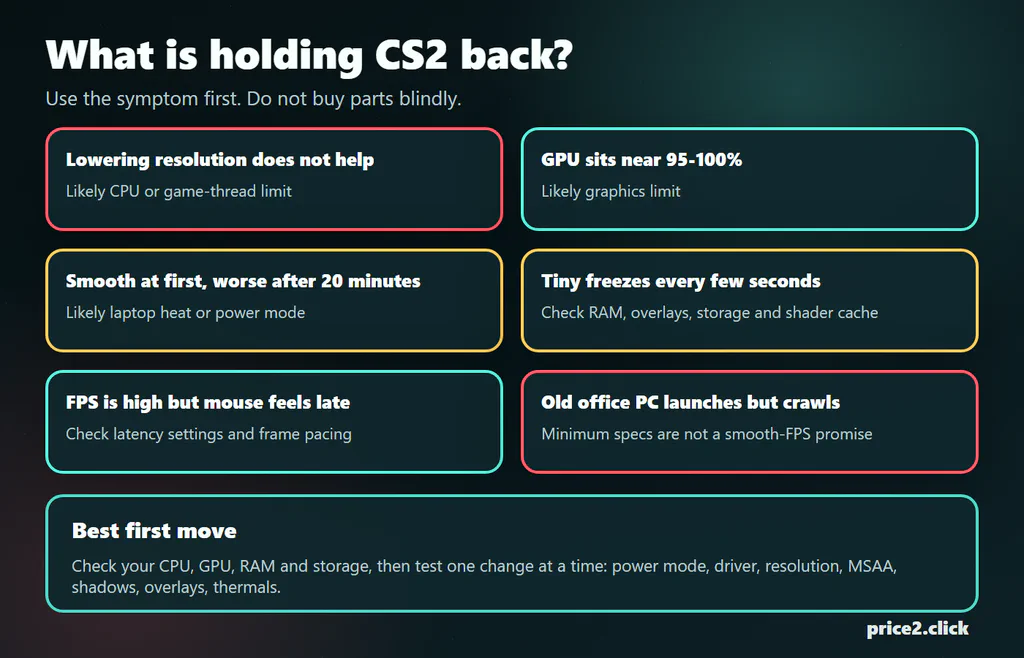
The symptom usually tells you where to look first.
Check Your PC Before You Tweak Anything
Before launch options, driver panels or upgrade carts, write down four things:
- Exact CPU model: a newer Core i3 can beat an old Core i7. The generation matters.
- Exact GPU model and VRAM: laptop GPU names are especially slippery.
- RAM capacity and layout: 16 GB is the comfortable target, and two sticks can matter more than people expect.
- Storage type: an SSD will not magically create esports FPS, but it can remove old-PC loading and hitching pain. Need an upgrade? See our best SSDs guide.
This takes two minutes and saves hours of guessing. In Task Manager, look under Performance for CPU, Memory and GPU. Use dxdiag if you want the DirectX and display-driver view.
Valve’s Official CS2 Requirements
Valve lists minimum requirements for Counter-Strike 2 on Steam. That matters: there is no official “recommended for 144 FPS” table from Valve on the store page.
| Part | Valve's Windows minimum | What it means in plain English |
|---|---|---|
| OS | Windows 10 | A modern 64-bit Windows setup. Older Windows versions are not the target. |
| CPU | 4 hardware CPU threads, Intel Core i5-750 or higher | Four threads is the floor. Smooth high-FPS play wants much more headroom. |
| RAM | 8 GB RAM | Enough to launch on a clean system, but tight once Windows, voice chat and browser tabs join the party. |
| Graphics | 1 GB or more, DirectX 11 compatible, Shader Model 5.0 | Very old GPUs may pass the line but still struggle with modern CS2 effects. |
| DirectX | Version 11 | Check with dxdiag if you are unsure. |
| Storage | 85 GB available space | Do not follow older pages still saying 50 or 60 GB. Leave extra room for updates. |
For SteamOS/Linux, Valve lists Ubuntu 20.04, the same 4-thread CPU and 8 GB RAM floor, plus AMD GCN+ or NVIDIA Kepler+ graphics with current Vulkan drivers. If you are on Linux or SteamOS, the driver part is not a footnote. It is the door handle.
One more old-hardware trap: if the PC is older than Valve’s CPU floor, do not waste a night chasing shadow settings. Some legacy chips simply miss the instruction support modern CS2 expects. When the game refuses to start at all on a very old CPU, the answer may be “this processor aged out,” not “try one more console command.”
The Practical FPS Tiers
Think of CS2 in four steps. The first step asks “does it start?” The next three ask “does it feel good?” The example parts below are neighborhoods, not shopping commandments.
| Goal | Example-level hardware | What to expect |
|---|---|---|
| Launch and test | Valve minimum, 8 GB RAM, low settings | Good for seeing whether the game opens. Not a promise of clean matchmaking. |
| Casual 60-90 FPS | Modern entry CPU, 16 GB RAM, GTX 1060 / RX 580 class or better, SSD | Playable if settings are modest and the PC is not busy doing five other things. |
| 144 Hz sweet spot | Core i5-12400F / Ryzen 5 5600 class or newer, 16 GB dual-channel RAM, solid midrange GPU | Where most players should aim. Watch 1% lows and smoke-heavy rounds, not only the average number. |
| 240 Hz and above | Fast gaming CPU, strong cooling, fast memory setup, GPU headroom | This is where small problems become obvious. A lower but steadier FPS can feel better than a jumpy headline number. |
The important idea is simple: for CS2, high refresh is a system balance problem. A powerful GPU can still feel bad behind a tired CPU, single-stick memory, laptop heat or a background app eating frame time.
If the GPU is the part you are shopping for, this live list shows the current best price-to-performance cards up to $400 under a 1080p-weighted preset — CS2 is CPU-hungry, so there is rarely a reason to overspend here. Prices are dated snapshots; verify the final price at the store.
Shopping note: the widget below contains affiliate links. Price2Click may earn a commission if you buy, at no extra cost to you. It does not change the calculations.
Average FPS Can Lie
A PC can show 220 FPS and still feel bad. That sounds impossible until you feel it in a fight.
Average FPS is the scoreboard number. It tells you what happened across a stretch of time. CS2 also needs consistent frame delivery. If most frames arrive quickly but every few seconds one frame takes far too long, you feel a hitch. That hitch can be the missed spray transfer, the late peek, the moment where the mouse seems to drag through mud.
For CS2, pay attention to:
- 1% lows: the slower moments, not the highlight reel.
- Frame time spikes: little freezes that make aim feel uneven.
- Input latency: how long it takes for mouse movement to show on screen.
- Thermal behavior: whether the PC is fine for five minutes and worse after twenty.
This is why “my FPS is high but it feels bad” is not nonsense. It is often the real diagnosis.
Run This 10-Minute FPS Test
Do one clean test before changing a dozen settings. You want a repeatable result, not a memory of “it felt better yesterday.”
- Restart the PC and close the obvious noise. Browser tabs, Discord overlay, recording tools, RGB suites and hardware monitors can all change the result. You can open them again later.
- Write down your normal setup. Resolution, refresh rate, video preset,
fps_max, whether Reflex or Anti-Lag is on, and whether the game is fullscreen. - Use one repeatable scene. A deathmatch warm-up, the same map corner with smokes, or the same offline route is better than comparing two random matches.
- Watch three numbers, not one. Average FPS, 1% low or frame-time spikes, and GPU usage. If you can also see CPU thread/load and temperature, even better.
- Change one thing. Lower resolution or the heaviest visual settings once. If FPS barely moves, stop chasing GPU settings first. If FPS jumps, the graphics side was probably part of the problem.
For a normal player, the result is enough if you can say one of these sentences:
- “Lowering resolution helped a lot, so I should tune GPU-heavy settings first.”
- “Lowering resolution did almost nothing, so I should look at CPU, RAM, heat or background apps.”
- “It starts smooth and gets worse after ten minutes, so heat or power limits are probably involved.”
- “FPS is fine but enemies teleport or shots feel delayed, so this may be network loss, not FPS.”
For the last case, test wired Ethernet, another server region and packet loss before changing video settings again. Network trouble can look like “bad FPS” when the real symptom is delayed or missing updates from the server.
8 GB RAM Is the Minimum, Not the Comfort Zone
Valve lists 8 GB because CS2 can run there. In a normal player’s Windows session, 8 GB is cramped: Steam, Discord, a browser tab, overlays, capture tools and Windows itself all want a seat.
When memory gets tight, the game can pause for tiny moments while Windows moves data around. On paper, the average FPS may still look fine. In your hand, it feels like the crosshair hiccups.
The clean target is 16 GB RAM, preferably in a two-stick dual-channel setup when the PC supports it. This matters even more for integrated graphics, because the iGPU borrows system memory instead of using its own VRAM.
There is a deeper Windows rabbit hole around standby memory and RAM cleanup tools. Most readers should not start there. First close obvious background apps, reboot before a serious session, and make sure the PC is not stuck on a single 8 GB stick.
CPU or GPU: Which One Is the Problem?
Here is the easiest home test.
Imagine a busy kitchen. The CPU is the chef calling the orders: players, grenade physics, hit registration work, game logic, what needs to happen next. The GPU is the line crew turning those orders into the picture you see: map geometry, lighting, smoke, shadows and pixels. If the chef is late, the line waits. If the line is overloaded, the picture arrives late. CS2 can punish both.
Start with your normal resolution and settings. Then lower the resolution and the heavier graphics settings. If FPS barely changes, the graphics card probably was not the main limit. The CPU, game simulation, memory pressure or background tasks may be holding the game back.
If lowering resolution and graphics settings gives a big FPS jump, the GPU was probably working hard. In that case, settings and GPU upgrades matter more.
Low or medium GPU use, FPS drops in busy rounds, little improvement after lowering resolution, and one or two CPU threads working hard.
GPU use near the top, better FPS after lowering resolution, MSAA, shadows or effects, and smoother play after reducing visual load.
Short freezes, slow loading, stutters after updates, or problems that get worse with Discord, browser tabs, recording software or overlays open.
Do not read total CPU usage too literally. A game can be limited by one hot thread while Windows shows the whole CPU at a boring-looking percentage.
Settings That Usually Matter First
CS2 players love settings lists, and that is where advice gets messy. One creator says to change ten console commands. Another says to delete files. A third says the secret is a launch option from 2017.
Start calmer.
| Setting or habit | Why it matters | First move |
|---|---|---|
| Resolution | Changes GPU load, but may not help if the CPU is the limit. | Test lower resolution once. If FPS barely changes, stop blaming the GPU first. |
| MSAA | Can cost GPU performance, especially on older cards. | Try a lower MSAA level before touching obscure tweaks. |
| Shadows and particles | Busy fights, smokes and effects expose weak systems. | Lower expensive visual settings while keeping visibility playable. |
| V-Sync | Can smooth tearing but may add latency. | Competitive players usually leave it off unless they know their display-sync setup. |
| NVIDIA Reflex / AMD Anti-Lag 2 | Can reduce input latency on supported hardware. | Use the in-game option when supported; avoid stacking random driver tweaks blindly. |
fps_max | A sensible cap can reduce heat and wild frame swings, especially on laptops. | Try a cap slightly above your monitor refresh rate; avoid chasing infinite FPS if the system overheats. |
| Overlays and recording | Discord, browser, capture and monitoring overlays can disturb weaker PCs. | Disable them for one test match before buying hardware. |
NVIDIA says Reflex is enabled from Settings > Video > Advanced Video in CS2. AMD says Anti-Lag 2 is integrated in supported games, including CS2, and appears through in-game developer integration on supported Radeon hardware.
That does not mean every PC should run every latency feature at maximum. If a setting makes the game feel better and stays stable, keep it. If it creates weird frame pacing, undo it. CS2 rewards clean testing more than superstition.
Launch options are the same story. -novid is harmless convenience. A giant copied string with -threads, old network commands and mysterious priority tweaks is not a strategy. Change one thing, play the same kind of test round, and keep only what clearly helps.
The one console command worth knowing for this guide is fps_max. It does not “boost” a weak PC. It sets a ceiling. On a hot laptop or a system with wild frame swings, that ceiling can make the game calmer. On a cool desktop, uncapped FPS can be useful for testing, but it is not automatically better for playing.
Why Smokes and Busy Rounds Hurt
CS2 is not just CS:GO with shinier walls. Source 2 changed lighting, smoke behavior, map detail and the feel of crowded fights. A quiet angle on an empty server is not the same workload as a late-round retake.
Valve’s responsive smoke demo is a good visual reminder: smoke is now part of the world, reacts to bullets and grenades, and can create a heavier scene right when everyone is moving.

If your PC is close to the edge, test performance where the game actually hurts: deathmatch, utility-heavy rounds, Ancient water, heavy smokes, and the maps you play most. If the drop happens mostly in smoke, shadows, particles and anti-aliasing deserve attention before you blame the whole PC.
Laptops Need a Separate Reality Check
Laptop names are slippery. Two machines can both say “RTX 4060 Laptop GPU” and perform differently because one has more power budget and better cooling. Thin laptops can also start strong and fade as heat builds.
Before deciding a gaming laptop is “too weak for CS2,” check:
- Is it plugged in? Battery mode can crush performance.
- Is Windows power mode set for performance? Quiet/battery profiles can hold back the CPU and GPU.
- Is CS2 using the dedicated GPU? Some laptops accidentally run games on integrated graphics.
- Are vents clear and fans working? Dust and soft surfaces turn FPS into a countdown timer.
- Are drivers from the right place? Some laptops need OEM drivers for hybrid graphics or power features.
- Is uncapped FPS cooking the machine? A 144 Hz laptop does not need to render 350 frames forever if that turns the keyboard into a warning sign.
Integrated graphics can run surprisingly much these days, but CS2 at high refresh is not a kindness test. If the laptop has only older integrated graphics, treat Valve’s minimum as “maybe it opens,” not “good for ranked.”
For hot laptops, fps_max 160 on a 144 Hz screen is often a smarter test than fps_max 0. Some players also tame overheating by limiting aggressive CPU turbo in Windows power settings, but treat that as a stability test, not a universal FPS trick. If it makes the game steadier over a full match, you learned the laptop was heat-limited.
Old Office PCs and Family Desktops
The most common trap is an old office PC with a decent CPU name, plenty of RAM and no real graphics card. It looks fine on paper until CS2 asks the integrated graphics to do modern game work.
For those machines, the decision tree is simple:
- If the PC has no dedicated GPU, check whether the power supply and case can safely accept one.
- If it has only 8 GB RAM, close background apps or upgrade to 16 GB before judging stutter.
- If it uses integrated graphics, dual-channel RAM can matter because the graphics chip borrows system memory.
- If the game sits on an old hard drive, move it to an SSD if possible.
- If the CPU is very old, a cheap GPU may not rescue high-refresh performance.
For a child, a casual bot match or an occasional community server, you can experiment. For serious matchmaking, avoid turning an old office tower into a money pit. At some point, the honest answer is a newer used gaming PC, not one more tiny upgrade.
A Safe Low-FPS Fix Ladder
Use this order. It keeps you away from the sketchy “FPS booster” swamp.
- Write down your specs. CPU, GPU, RAM, storage type and monitor refresh rate.
- Update from official sources. GPU driver from NVIDIA, AMD or your laptop maker; Windows updates if pending.
- Verify CS2 files in Steam. This is boring and often worth doing after weird updates.
- Close overlays and background apps. Test without Discord overlay, browser tabs, recording and hardware monitors.
- Remove network confusion. If the game rubberbands or enemies teleport, test wired Ethernet before calling it FPS stutter.
- Check laptop power and thermals. Plug in, choose performance mode, lift the rear of the laptop, clear vents.
- Lower the expensive settings. Resolution, MSAA, shadows and effects first.
- Try a sane FPS cap. Especially on laptops, a stable cap can feel better than a hot, noisy uncapped graph.
- Test latency features cleanly. Reflex or Anti-Lag 2 if your hardware supports them.
- Only then think hardware. RAM first if you are at 8 GB and stuttering; GPU if graphics settings move FPS; CPU/platform if lowering graphics does almost nothing.
Avoid:
- random registry packs;
- “FPS booster” installers;
- old CS:GO launch-option lists pasted into CS2;
- changing ten settings at once and guessing which one helped;
- buying a TPM module, SSD or GPU because a comment section sounded confident.
If you are asking a friend, a shop or support to help, do not send only “CS2 lags.” Send this:
- a screenshot of Task Manager > Performance showing CPU, Memory and GPU names;
- your monitor refresh rate and CS2 resolution;
- one screenshot with FPS/frame-time/GPU usage during a bad moment;
- whether the PC is a laptop, plugged in, and using the dedicated GPU;
- what changed recently: driver update, Windows update, new monitor, new RAM, new GPU, moved the game, or installed recording/overlay software.
That is the difference between real diagnosis and someone guessing “buy a better GPU.” We keep a separate CS2 low-FPS support example for the common case where the PC looks strong on paper but still feels choppy.
What I Would Upgrade First
If the PC barely launches CS2, do not start with a fancy monitor. The clean order is usually:
| Symptom | Upgrade or fix | Why |
|---|---|---|
| 8 GB RAM and stutters with apps open | Move to 16 GB RAM if the PC supports it | Cheap, practical, and helps Windows breathe while gaming. |
| Integrated graphics and one RAM stick | Use a supported dual-channel RAM setup | The iGPU borrows system memory, so memory bandwidth can be the whole story. |
| Game on old hard drive, slow loads and hitching | Install CS2 on an SSD | Does not create high FPS, but can reduce storage-related misery. |
| GPU pegged, lowering visuals helps a lot | GPU upgrade | The graphics card is doing the suffering. |
| GPU not busy, FPS still drops | CPU/platform upgrade | High-refresh CS2 leans hard on CPU speed and consistency. |
| Laptop slows after warm-up | Cooling, power profile, cleaning, then replacement if needed | A hot thin laptop can make good specs act ordinary. |
The point is not to spend less at all costs. The point is to spend in the place CS2 is actually waiting on.
FAQ
Can CS2 run on 8 GB RAM?
Yes, 8 GB is Valve’s listed minimum. For a smoother everyday setup, 16 GB is a much better target because Windows, voice chat, browsers, launchers and overlays all want memory too.
Does CS2 need an SSD?
Valve lists 85 GB of available storage, not “SSD required.” Still, an SSD is a sensible place to install CS2. It helps loading and update life, and it removes one common source of old-PC sluggishness.
Is CS2 CPU-bound or GPU-bound?
Both can be true. At low settings and high refresh targets, the CPU often becomes the wall. At higher resolution, heavier effects or weak graphics cards, the GPU can be the wall. Test by lowering resolution and heavy visual settings once.
Can an old laptop run CS2?
Maybe. A laptop with a dedicated GPU, 16 GB RAM and good cooling has a much better chance than a thin office laptop with old integrated graphics. Always test plugged in and make sure CS2 uses the dedicated GPU if one exists.
Should I use console commands to boost FPS?
Use normal in-game settings first. Some console commands are harmless, some are obsolete, and some advice is copied from CS:GO without checking CS2. A stable, reversible settings change beats a mysterious command list.
Should I set fps_max 0?
Not automatically. Uncapped FPS can be useful for testing headroom on a desktop with strong cooling. On a laptop or a heat-limited PC, a cap slightly above your monitor refresh rate can make the game steadier.
References
Official requirements: Valve’s Counter-Strike 2 Steam page. Latency settings: NVIDIA’s Counter-Strike 2 Reflex guidance and AMD’s Radeon Anti-Lag page.